Ultimate Guide to UDISE Plus School Profile 2025-26: Steps, Modules, and Tips
Managing school data can feel like a massive chore. Every year, administrators across the country have to log into a massive digital system to update their records. If you are handling school management, you know exactly what I mean. The udise plus school profile 2025-26 updates are finally live. This system helps keep track of every classroom, student, and educator. But let’s be honest, the portal can sometimes feel like a maze.
Navigating the various login buttons, tracking down missing codes, and making sure your data is 100% correct is a big responsibility. One tiny typo can delay your approvals. That is why I wanted to write this friendly guide. We will break down the latest portal updates into simple, everyday steps. Whether you are checking student metrics or updating staff lists, this breakdown has you covered.
What is the UDISE Plus System?
Before jumping into the step-by-step instructions, let us look at what this platform actually does. The udise plus school profile 2025-26 acts as a massive digital ledger for education. The name stands for Unified District Information System for Education Plus. It collects real-time information from millions of schools. This includes building conditions, available toilets, electricity, and even playground space.
Think of udise plus as a giant report card for our entire school infrastructure. When a school updates its information accurately, it ensures the community gets the right resources. If the system shows a school lacks a proper science lab or drinking water, it helps decision-makers see where funding needs to go. That is why keeping this profile accurate is so vital for every local administrator.
Detailed Platform Overview Table
To give you a quick look at how the entire portal is structured this year, I put together a helpful summary table. It breaks down the main sections you need to fill out.
| Portal Module | Core Purpose | Key Data Fields Required |
| udise plus school profile 2025-26 | Captures basic institutional details and physical infrastructure. | Location type, building status, boundary walls, toilets, and playground availability. |
| udise plus student module | Tracks personal and academic records for all enrolled boys and girls. | Student names, dates of birth, General Profile (GP), and Enrollment Profile (EP). |
| udise plus teacher module | Manages the professional database of all teaching staff. | Academic qualifications, teacher Aadhaar verification, and date of joining. |
Exploring the New School Profile Updates
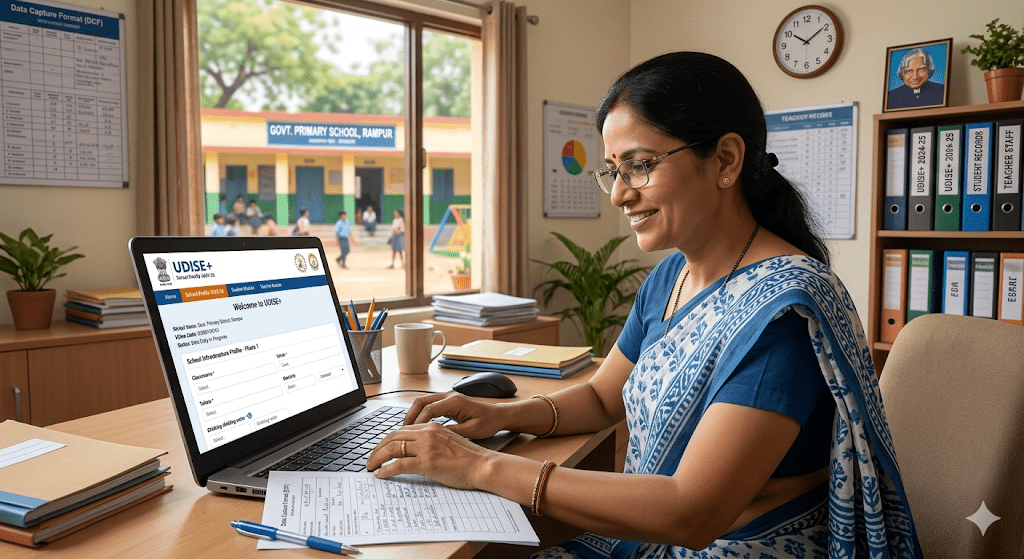
Every year, the core data capture formats get a slight refresh. For the udise plus school profile 2025-26 cycle, there is a stronger focus on safety indicators and digital assets. When you log in, you will notice that the system wants very specific details about your classrooms. For example, you have to report whether your dustbins are available in every single classroom or just a few.
You will also need to input geographical details like the exact latitude and longitude of your school building. The platform uses this data to map out schools across rural and urban areas. It might seem like an overload of details, but these specific points create a highly transparent map of our educational facilities.
Understanding the Udise Plus Student Module 2025-26
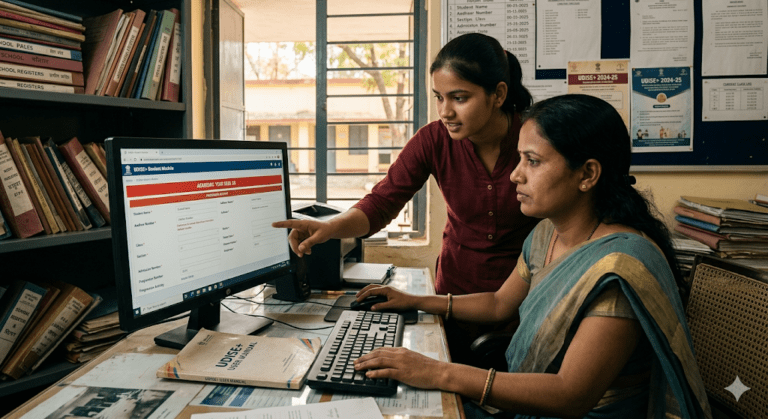
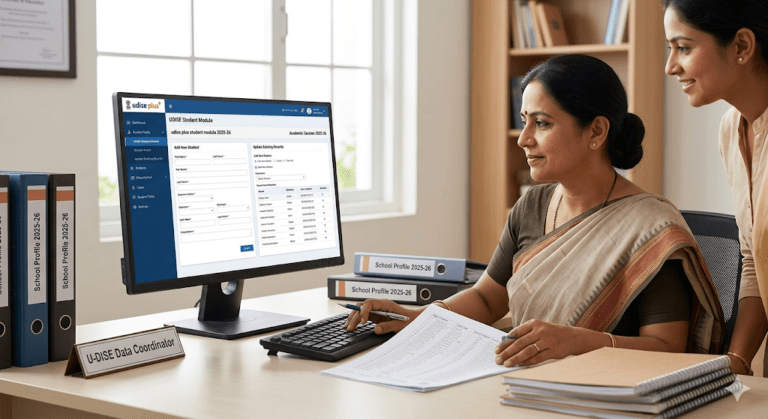
The next big piece of the puzzle is the udise plus student module 2025-26. This section is often called the Student Database Management System. This is where you manage individual student-level data. The system categorizes student info into three simple sections: the General Profile, the Enrolment Profile, and the Facility Profile.
In the General Profile, you will input the basic details like the student’s full name, gender, and date of birth. The Enrolment Profile handles admission numbers and class sections. Lastly, the Facility Profile keeps track of what the student receives, such as uniforms or mid-day meals. Managing the udise plus student module properly ensures that no child gets left behind in the official records.
Mastering the Udise Plus Teacher Module
Staff data is just as critical as student data. The udise plus teacher module is the dedicated area where you manage your staff profiles. Whenever a new educator joins your team, or an old one transfers to a different school, you must update it here. You will need to input their official joining dates and verify their professional qualifications.
A great feature here is the ability to import transferred staff easily. If a teacher moves from another district, you can pull their existing record using their unique ID. This saves you from typing everything from scratch. Keeping the udise plus teacher module fully certified ensures your school looks properly staffed to external auditors.
Comparing Past Data to Current Session
It is always smart to look back so you can move forward cleanly. Many schools are still cross-checking entries from udise plus 2024-25 to ensure consistency. If you made mistakes in the previous year, you cannot simply ignore them. You need to make sure the progression data carries over seamlessly to the new term.
For example, when you use the udise plus student module 2024-25 historical data, you can see which students were promoted. If a student was in Class 5 last year, the system expects them to appear in Class 6 for the udise plus school profile 2025-26 records. Verifying these links prevents painful error messages later on.
Step-by-Step Profile Update Guide
Updating your profile does not have to be a headache if you follow a clean sequence. Let us walk through the exact steps to complete your school profile updates without getting lost.
1.Access the Official Portal:Step 1.
Open your web browser and head over to the main website. Make sure you see the secure lock icon in your browser address bar.
2.Enter Login Credentials:Step 2.
Input your unique school user ID, password, and the dynamic captcha code. Click the sign-in button to enter your primary dashboard.
3.Select the Profile Module:Step 3.
From the main dashboard screen, click on the profile and facility section. This will open up the forms for the udise plus school profile 2025-26 session.
4.Fill Section 1A Details:Step 4.
Carefully update your school address, contact numbers, and headmaster information. Ensure your email address is spelled completely right.
5.Report Infrastructure and Save:Step 5.
Fill out the checklist for toilets, drinking water, electricity, and boundary walls. Click the final submit button to save your data for block approval.
Common Mistakes to Avoid in the Portal
When dealing with massive platforms like udise plus, mistakes happen easily. The biggest issue administrators face is entering incorrect student names that do not match official identity cards. This can completely break the validation process in the udise plus student section. Always double-check spellings against the physical admission register.
Another common trap is leaving fields completely blank. The portal is designed to reject incomplete forms. If a facility like a playground is not available, select “No” instead of leaving the question unanswered. Taking an extra minute to verify your drop-down choices will save you hours of troubleshooting later.
Managing Regional Data Modules
Depending on your physical location, your state might use a slightly localized approach to manage education statistics. For instance, the udise plus upudise student module handles data specific to regions in Uttar Pradesh. While the core fields remain identical, regional servers sometimes have unique deadlines or local helpdesk contacts.
Always stay in touch with your local Block MIS (Management Information System) officer. They receive direct updates from the central department and can guide you through regional quirks. Whether you are managing a rural primary school or an urban secondary academy, keeping local channels open makes data submission much smoother.
Final Data Certification and Submission
Once you have filled out the school profile, student data, and teacher details, you reach the final stretch. You cannot just enter the data and close the tab. You must formally certify the information. This is a digital signature stating that all the numbers you provided are entirely true.
Go to the certification page inside the dashboard. Review the summary metrics to ensure the total student count looks accurate. If everything looks perfect, click on the final “Certify” button. This pushes your data to the district level for official review, successfully closing your tasks for the year.
Pro Tip: Always download a copy of the final submitted Data Capture Format (DCF) as a PDF file. Store it securely on your office computer so you have a quick reference if any data queries come up later in the school year.
Helpful Frequently Asked Questions
What should I do if I forget my school portal password?
If you lose your login credentials, click the “Forgot Password” link on the main page. You will need to enter your official school user ID and registered mobile number to get a reset link. If that does not work, contact your local Block MIS officer for a direct manual reset.
Can I update student records without an Aadhaar card?
Yes, the system allows you to register a student in the udise plus student module even if they do not have an Aadhaar card yet. You can use their school admission number as a temporary anchor, but it is highly recommended to update their official ID details as soon as they receive them.
What is the final deadline for the 2025-26 data entry?
Deadlines vary depending on specific state education department announcements. However, most regions expect schools to complete their data entries within a few weeks of the portal opening. Check your local dashboard announcements area regularly so you never miss the cutoff date.
How do I fix an error in a teacher profile that has already been certified?
Once a module is certified, it gets locked for security reasons. If you notice a typo after certifying, you cannot edit it directly. You will need to submit a formal correction request to your District MIS team, who can temporarily unlock the module for changes.
Is the data format different for rural and urban schools?
The overall questions and required sections are exactly the same for all locations. The only difference is Section 1A, where rural schools list their Gram Panchayat and village names, while urban schools fill out local municipal ward details instead.
Can a school have multiple active users on the portal at once?
It is safest to have only one administrator logged into a specific module at a time. If two people try to update the student section simultaneously, the system might fail to save the inputs correctly, resulting in lost progress.
Wrapping It All Up
Completing your udise plus school profile 2025-26 details might feel like a long journey, but breaking it down into simple pieces makes it completely manageable. By keeping your records organized, updating your student lists early, and certifying your staff modules carefully, you help create a much clearer picture of our education system. Take it one step at a time, use the built-in import tools to save time, and do not hesitate to reach out to local helpdesks if you hit a digital wall.